For members
Share and watch screens
Start a share, set its quality, and choose which cameras and screens reach you.
A share goes to the voice call you're in, at up to 4K and 60 fps, and you can share several screens at once. Each person in the call chooses which shares to watch. Share from the desktop app, a computer browser, or the phone app; a phone browser can watch but can't share.
Share your screen
Join voice, then select share screen beside your call controls. A chooser always opens first. snug never picks a screen or window for you.
While you share, that button shows an on-air light and opens your screens, and a small screen appears after your name in the channel list. In your screens, see who's watching each share, stop one, or share another. Hiding your own preview there changes only this device; friends keep watching.
In the Windows desktop app, the chooser offers sound. For a window that supports it, include this app's audio is already on, and other windows from that app may be heard too. Otherwise the choice is include all computer audio, which carries every sound on the computer, notifications and calls included. In a browser, sound depends on what its chooser offers. A share from the macOS or Linux desktop app carries video only.
Share several screens at once
- Start your first share.
- Select the share button again to open your screens.
- Select share another screen, then choose the next screen or window.
Each share reaches friends as its own tile, and each friend picks which to watch. With two or more running, stop all in your screens ends every one. Each extra share is harder on your computer, the server, and everyone watching. A channel carries up to 25 cameras and screens at a time unless its server sets another limit. Past that, a new one gets "This channel is at its video limit", and voice keeps working.
The phone app shares one screen at a time.
Share a game from the desktop app
For a game, share the whole screen. If you share a window and friends see the game's launcher instead of the game, stop and choose the game's own window.
On Windows, the desktop app captures and encodes the share itself, which is smoother for games and lighter on your computer. One share at a time gets that native capture; any others use the browser's capture.
A native share goes out in AV1 when the graphics card behind that screen encodes AV1 and someone else in the call can decode it in hardware. AV1 looks sharper on the same connection. Friends whose devices can't decode it, and the phone app, get an H.264 copy. show nerd stats on a share names the format it arrived in.
If a share looks wrong in the Windows desktop app, turn off native screen capture in Settings > Video and start the share again.
If you choose a minimized window on Windows, the share waits until you bring that window back up. Friends see that you're getting a screen ready, but not which window, and receive nothing until it starts. Select the share button again to cancel.
Share from your phone
In the phone app, join voice and tap the share screen button. Your phone asks first: on iPhone, start the broadcast in the sheet iOS shows; on Android, allow the capture. Friends see what's on your screen as you move between apps, so close anything private before you start. A phone share carries video only. Tap the share screen button again to stop.
Choose share quality
In Settings > Video, under screen share, set smoothness to 30 or 60 fps. 60 suits games and video; 30 is plenty for text and slides.
sharpness runs from up to 720p to up to 4K. It counts lines along the short side, so 1440p sends an ultrawide at 3440x1440. match my screen keeps the screen's own size. A share starts at 60 fps and up to 1080p, or 30 fps in the phone app.
The panel shows what each choice costs your connection, and changes apply to a share that's already running. Your choice is the most you'll send. Each friend watching gets what their own connection can carry.
Choose what you watch
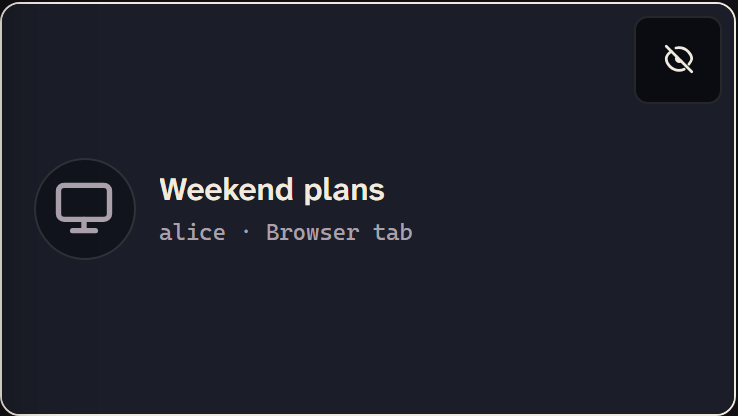
Cameras play automatically. A screen share waits as a dimmed tile until you select it, which starts its video and sound on this device. To change either default, use Automatically join cameras or Automatically join screen shares in Settings > Video. Each choice stays on this device and leaves streams you're already watching alone.
A stream's name, viewer count, and actions stay off the picture until you point at it, tap it, or reach it with the keyboard. The phone app keeps a camera's name in the corner. The viewer count is an eye and a number; select it to see who's watching. A stream too small for all its actions keeps the rest behind more actions.
leave stream stops a share for you and keeps it running for everyone else. hide video for me clears a camera or share from your layout. To get it back, open hidden streams and select show beside it, or show all. A restored share waits as a dimmed tile until you select it.
To keep hiding someone's video after they restart it, right-click their name or one of their streams and check hide all their video. In a phone browser, press and hold their name. This hides their cameras and screen shares on this device, including future ones and after you reopen snug. Their voice and messages don't change. Uncheck it in the same menu to see their video again. The phone app doesn't offer this.
In the phone app, tap a share's card to watch it, and use the full-screen button on its tile to watch it large. The tile's stop button stops watching and leaves the card, so tap it to watch again. A share's sound button sets its volume. The phone app hides cameras for you, but not shares.
Pop out a stream
Select pop out video on a camera or share. add to picture-in-picture floats a small window above your other apps; add more streams to tile them. open in new window gives the stream an ordinary window to move to another screen, resize, or make fullscreen. bring video back returns it, and so does closing the window.
New windows work in computer browsers and the desktop app. Phone browsers offer picture-in-picture, and the phone app uses full screen instead. If your browser blocks the window, allow pop-ups for your snug server and try again.
If a shared window freezes or a share won't connect, see fix calls and screen sharing.