For server operators
Set up a snug server
Prepare a supported Linux host, install snug, and prove calls work from outside.
One machine runs all of it: the app your friends open, the database, the uploads, and the calls. You bring the machine and the address. snug brings the software.
Work down this page in order. Every number in it comes from what snug supports, and you want the released server package rather than a source checkout.
Check the host
You need:
- Ubuntu 24.04 LTS, Ubuntu 26.04 LTS, Debian 12 (Bookworm), or Debian 13 (Trixie) on
amd64orarm64 - Linux kernel 6.1 or newer
- Docker Engine 28.5.2 or newer
- Docker Compose 2.24.4 or newer
- 1 logical CPU, 2 GiB of memory, and 20 GiB of free disk
- a public IPv4 address that reaches the machine
- a domain pointed at that address, if the group wants a name
The server package includes snug-ops, and its prepare command installs
the Docker pieces when the machine doesn't have them yet.
A cheap VPS has a public address of its own, which is the ordinary case. A machine at home can work too when the router forwards the ports to it; see if you host at home before you buy anything. Carrier-grade NAT, where your connection can't take inbound traffic at all, won't work. Neither will a private network, unless you can give it an HTTPS certificate browsers already trust.
The server is yours, and so are its security, backups, updates, domain, and uptime. Read who can see what before you invite anyone. Your friends are trusting you with their messages. Before inviting them, configure the text filter and test the report-response process.
Use one server login
A non-root login is recommended for the snug folder and every snug-ops
command. Use the one your provider gave you. You do not need an account named
snug.
If your provider gives you only root, follow its initial server setup guide
to create a user with sudo access and copy your SSH key. DigitalOcean has a
step-by-step Ubuntu guide.
Test the new login in another terminal before closing the root session, then
return here. Root remains supported if you deliberately keep it, but doctor
warns because an accidental command can change the whole host.
Whichever login you choose, keep using it. Files and the update schedule
would otherwise end up with different owners, so snug-ops refuses a command
from any other account, root and sudo included, and prints the one to run
instead.
Install the host command
From the folder where snug/ should live, run:
curl -fsSL https://snug.chat/install.sh | sh
The bootstrap downloads and verifies the released server package in snug/.
It does not install system packages, add accounts, change groups, or start the
server.
To see what the machine still needs without changing anything, ask:
./snug/snug-ops doctor
doctor checks the Linux release, Docker access, Compose plugin, automatic
updates, local resources, and whether the machine has a public address. It
changes nothing. The next command makes the changes.
Prepare the host
Run:
./snug/snug-ops prepare
prepare runs the same checks, then prints every command it wants to run and
waits for you to type yes. Only then does it use sudo to install Docker
Engine and Compose from Docker's own repository, after checking Docker's
signing key against the fingerprint snug pins, give your login access to
Docker if it doesn't have it, turn off Docker's per-port helper processes,
raise the kernel's limit on how much call traffic can wait while the server
is busy, install cron and util-linux if they're missing, and open the web
and call ports in UFW when it's active. If Ubuntu's or Debian's own Docker
packages are installed, it removes them first, because Docker's conflict with
them. On a host that needs nothing, it says so and stops.
Turning off the helper processes restarts Docker, and so does upgrading it;
other containers on the host stop with it. The ones with a restart policy
come back on their own. prepare lists what's running first, with sudo if
Docker still refuses your login, names the rest in its plan, starts them
again, and checks that they're running. If it can't even list them, it
stops before restarting anything. If your login reaches Docker somewhere else, through DOCKER_HOST,
another context, or rootless Docker, prepare says so and stops: snug runs
on the host's own Docker.
When a command fails, prepare stops there, names it, and leaves the rest
for the next run; nothing it already did needs undoing. The one file it
won't touch blind is a /etc/docker/daemon.json your login can't read: it
tells you the line to merge instead.
Docker access normally starts at your next sign-in. You don't need one:
snug-ops notices the new group and carries on.
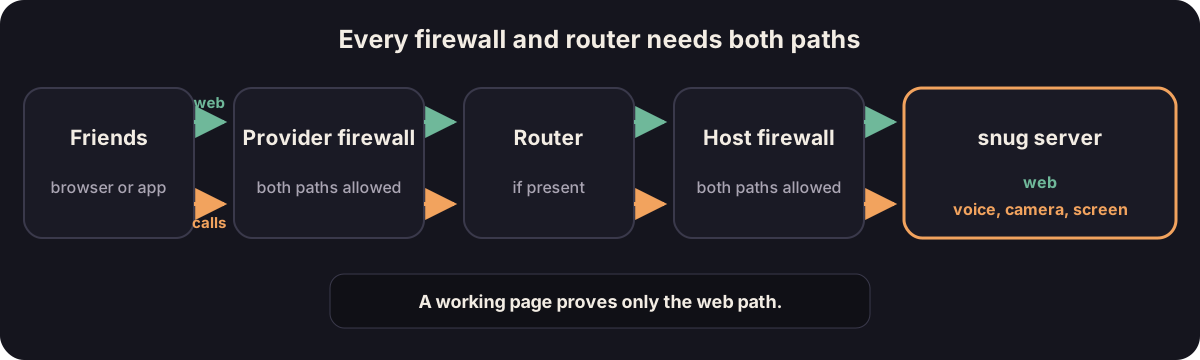
What prepare can't see, you still open yourself: a provider firewall, a
cloud security group, or a router. So it ends by asking snug.chat to try the
ports from the internet: TCP 80 and 443 for the app, and both ends and the
middle of the call range, 40000 to 40400, over UDP and TCP. Nothing has to be
listening yet. A port that answers is open. A TCP port that stays silent is
blocked somewhere, and the output says where to look. UDP silence is a
warning rather than a verdict: it is almost always a firewall, and a call
from outside settles it. Open what's closed, then ask again:
./snug/snug-ops ports
snug.chat learns your server's address and the port numbers, and nothing else. Leave TCP 80 open for good: it redirects visitors to HTTPS, and snug renews its certificate over it. A page that loads proves nothing about the call ports, which is why the check tries them.
Settle the address
Pick the one address members will open. snug gets an HTTPS certificate for whichever you choose.
If you have a domain
Point an A record at the server's public IPv4 address. A name is easier to paste into a message, and it survives moving snug to another machine.
If you don't have a domain
Use the server's public IPv4 address. Nothing to buy, no DNS record to make. Let's Encrypt issues certificates for IP addresses, so browsers grant microphones, cameras, and screen sharing exactly as they would for a name. Those certificates last about six days and renew themselves, so a server that spends a week off the internet comes back untrusted until it renews.
Adding a domain later means telling everyone once, and changing it is one command: move the server to a new address.
If you host at home
A home connection can host a snug server when it has a public IPv4 address, even one that changes now and then. Cable and fiber lines usually do. Forward TCP 80 and 443 and TCP and UDP 40000-40400 on the router to the machine, and use a domain, because your friends' sign-ins are tied to the address they joined at. Point the domain with your router's dynamic DNS or a small updater, so the name follows the address.
When the address changes, calls keep announcing the old one until you tell snug the new one:
./snug/snug-ops address --ip 203.0.113.9
That restarts the server once. Chat keeps working through the domain the whole time.
Carrier-grade NAT can't take inbound traffic, so no forwarding helps. If the router's internet address starts with 100.64 through 100.127, that's what you have; most 5G home internet and Starlink's standard plan work this way. Ask the provider for a public address, or host on a small VPS instead.
Screen sharing is the one thing a home line limits. Chat and voice need little, but a 1080p60 share reaches each viewer at several megabits, and a residential uplink runs out long before a VPS does.
Install snug
Run:
./snug/snug-ops install
It asks three things. First, the license: paste the certificate from your
receipt email, one long line starting with SNUG1., or press Enter to add it
later. Then the public IPv4 address used for calls, which is filled in when
the machine has one of its own. Then the address members open. Press Enter at
the last question to reuse the IP address.
If you copied the .lic file onto the server instead, hand it over as a
path, and pass the other answers up front to skip the prompts:
./snug/snug-ops install \
  --domain chat.example.com \
  --ip 203.0.113.10 \
  --license ~/snug-license.lic
install repeats the same read-only checks as doctor, then configures and
starts snug, and once the server is up asks snug.chat to try the ports again.
If anything changed since the last check, follow the printed remedy and run
the install command again. When a domain doesn't point at the address you
gave, install says so and continues; fix the record before you invite
anyone.
Installation prints the server address and an admin setup code. Keep both until you've made the first admin account. The code works only for that first account and stops working as soon as it exists.
Keep your own copy of the license somewhere other than this host. Backups
leave the license out, so that copy is what a rebuild needs. If you copied the
.lic file over, delete it once activation succeeds:
rm ~/snug-license.lic
If activation fails, leave the locked server running and check
./snug/snug-ops license status. Don't rerun install to retry it.
Prove the server works
Open the address over HTTPS and use the admin setup code to make the first account yours. Then walk the server the way a member would:
- Run
./snug/snug-ops statusand read a healthy result. - Join from the public HTTPS address.
- Send a message, reload, and confirm it's still there.
- Upload and download a small file.
- Make a voice call with someone outside the host's network.
- Open your own connection info and the other person’s. Check both paths
show
UDP; a dash means no recent measurement.TCPmeans that path fell back from UDP, so check the public call-port range if media is struggling. - Play one supported media link and change the media bot's volume.
- Run
./snug/snug-ops backupand copy the printed backup off the host.
Once that passes, go on to maintain the server before it holds anything the group would miss.