For members
Notifications and updates
Decide what makes noise, and pick up new versions when they're ready.
Choose what makes noise
By default snug is quiet: a mention or a reply rings once when you're not looking at it, a direct message counts up silently, and an ordinary channel message just shows a dot.
To quiet everything on this device, open Global notifications at the bottom left and choose Mute all sounds. The bell shows the current sound state, including when the volume is at zero. Your channel and sound choices stay saved. On a phone, open the channel list to find this control.
To hear everything, turn on Every new message under Settings > Notifications. To tune one channel, right-click it and pick the usual · mentions ping, every message pings, mute, or mute for an hour. On a phone, the same choices live under Settings > Notifications.
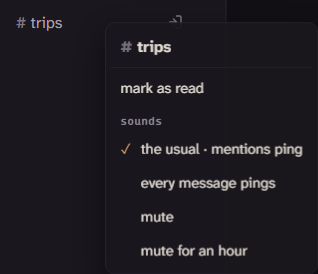
Muting silences mentions too; unread counts still appear. Channel choices follow you to linked devices, while sound pack and volume stay with each device.
The bell beside the message box says whether a message pings anyone.
It appears turned on when you reply or mention someone; turn it off to send
quietly. In a direct message it starts off, so a message waits for them;
turn it on to ping them now, and that message says ping beside its time.
Starting a message with @silent also sends it without a sound on anyone's
end. Quiet messages still count as unread.
A poke asks for attention with a sound, unless the other person muted sounds or turned Pokes off. Right-click someone who's online (touch and hold on a phone) and choose poke. A note sent with a poke also lands as a direct message.
snug says nothing while it's closed. Browser notifications, system notifications, and mobile push aren't supported; what snug supports keeps the current list. For plans, there is one way through: your own calendar.
Put plans on your calendar
Open Settings > Notifications, find Plans on your calendar, and choose turn on. snug hands you a link. Paste it into your calendar app as a subscription. In a browser there is also subscribe on this device, which hands the link straight to your calendar app where the system knows what to do with it, which is most reliably a Mac or an iPhone. The desktop app gives you the link to copy instead.
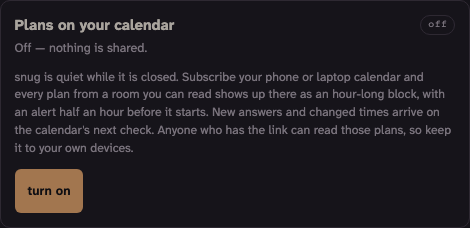
Every plan from a channel you can read then shows up in your calendar with an alert half an hour before it starts. A plan that said how long it runs gets a block that long; one that didn't gets an hour, which is what a calendar needs in order to draw anything at all. New answers and changed times arrive whenever your calendar next checks; snug asks for hourly, and each calendar app decides for itself. Plans from a channel you lose access to disappear from the feed on its next check. Turning the link off stops future reads; remove the subscription in your calendar app to clear its saved plans. Turn it on before anyone has made a plan and the calendar is empty until the first one.
Treat the link like a key. Anyone who has it can read those plans without signing in to snug, so keep it on your own devices. If it gets out, choose replace link. The old address stops working straight away, and you paste the new one wherever the old one was.
For one evening you don't want a whole subscription for, choose Add to calendar on the plan itself and open the file it downloads.
Decide when a plan nudges the channel
How long beside the time is the other half of what a calendar needs. Most plans leave it at However long it takes. Choosing three hours sets the calendar block and shows an end time on the plan. Dates show your local time zone. A plan with a stated end stays marked happening now until that time.
The chips under Remind the channel say when snug posts a reminder in the channel. The reminder is an ordinary message that mentions everyone going, so it pings them, counts as unread, and is still there when someone gets back.
snug fills the chips in for you based on how far off the plan is: a day's warning for next Saturday, and a nudge ten minutes before it starts. A lead the plan is already too close for is greyed out, and so are the rest once you have picked four. Change them while you're making the plan, or afterwards with Edit plan. Changing the time keeps everyone's answers. A reminder that has already posted stays spent; changing the duration leaves the reminder schedule alone. Choose View responses on a plan to see who said going, maybe, or can't.
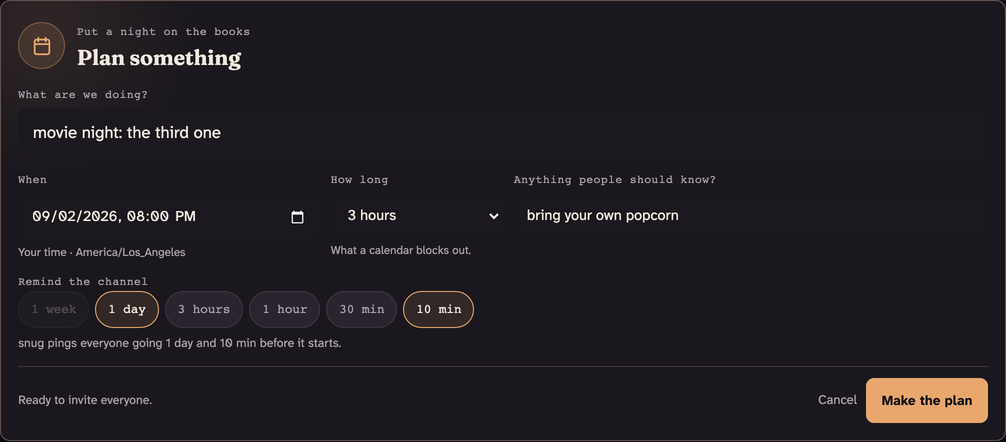
Those reminders belong to whoever made the plan. Your own half-hour alert comes from your calendar instead, and you change it there like any other alert.
Pick up an update
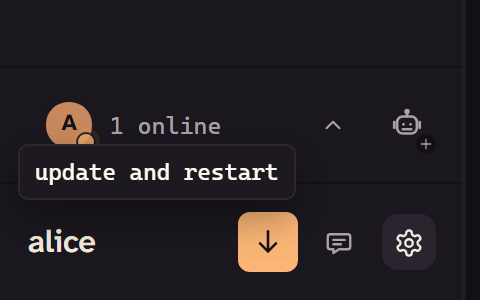
Nothing restarts on its own. When a new version is ready, a control appears beside your name. In the browser it says refresh for a newer snug: select it once, and rejoin voice if you were in a call.
The desktop app fetches a new version quietly in the background. While it's coming down the control says update and restart, and one press does both. Once it's here, the control says restart to update: press it and snug closes, comes back, and returns you to your call. Leave it alone and the update installs the next time you quit snug, so tomorrow you open the new version.
If it says update stopped · try again, press it once more. update needs a manual install points to the fallback under Settings > About. No control means no update is waiting.
If a snug server says this app is too old to join, the join screen offers you the same update. Take it there, then join again.
The desktop app and the server update separately, and the app doesn't wait. So if something in the change log hasn't reached you, the server is probably on an older release, and the person who runs it decides when it moves. An admin can look it up: Settings > Admin > Server says when the server's app was built.