For members
Find messages, channels, people, and files
Jump to a conversation, dig up a message or shared file, or reach someone who's away.
When a snug gets busy, Find takes you straight to a conversation, shared file, or older message. It only shows places and content you can already read.
Jump to a conversation
Select the magnifying glass in the conversation header. The default shortcut is Ctrl-K (Command-K on a Mac). Type part of a channel or person's name, then choose the result to open that channel or direct message.
Find also searches shared files and message text.
In the browser or desktop app, Settings > Hotkeys lets you change or clear the Find shortcut and React to the newest message (Ctrl-Shift-Enter by default). Select a binding, then press the keys you want to use. Escape cancels recording. Your choices stay on this device.
If messages stop updating
Keep snug open while it reconnects. Messages already on screen may be out of date; snug catches up when the server returns. You can keep writing and sending while you wait: messages, polls, and plans are saved on this device and sent once snug reconnects. Recent conversations and text drafts also return when you reopen the same browser or desktop app.
If a conversation, pinned messages, or Find cannot load, use Try again beside the explanation. An empty result means the server answered and found nothing there.
If a message is waiting to send
When snug says a message is saved on this device, you can reload or reopen the same browser or desktop app. snug finishes sending after it reconnects, without posting the message twice. Keep that device's stored data until it finishes; another device does not have the saved copy.
Words still in the message field are saved as a draft on this device, separately from messages waiting to send. Reopening restores them without sending them. Staged files and uploads are not restored, so let uploads finish before closing the window. If snug says device storage is unavailable, copy your draft first. Clearing device storage also removes drafts and recent cached conversations.
If the server refuses a saved message, snug keeps the words beside the composer. You can copy them into another conversation if that channel is no longer available. Remove saved copy stops further attempts; it does not delete a message that already reached the chat.
If snug says it is waiting for a server update, ask the person who runs your server to update it. You can still copy the saved words while you wait.
Older servers may not support saved sends. If snug cannot confirm whether a message was sent and hasn't saved a copy, check the conversation before sending your draft again. The first send may already have arrived. Copy any unsent words if snug reports that it cannot save the draft on this device.
Point someone to a channel
Type # in a message and choose a channel. The reference keeps up if the channel is
renamed. Anyone who selects it goes straight there, as long as they already
have access.
Private channels stay private. A reference never lets someone through a door they could not open themselves.
Share an exact message
Open a message's actions and choose copy message link. Send that link to someone from the same snug. When they open it, snug takes them to the channel and highlights the message, even when it is older than the messages they first see.
To open a copied link from inside snug, open Find, paste the link, and choose open linked message.
If they would rather use the desktop app, they can open the same message there. The choice appears on the join screen and after the browser opens the message.
The link uses the same channel access rules as the rest of snug. If the message was deleted, the channel opens at its latest messages instead.
See who reacted
Tapping a reaction adds or removes yours. To see who left each reaction on a message, touch and hold any of its reactions, or right-click one with a mouse. A message's actions also offer who reacted once it has a reaction. With a mouse, resting the pointer on a reaction names the people and the emoji.
Find a file someone shared
Select the paperclip in the conversation header to open files. On a phone, choose files from the channel menu. Search by filename, channel, or tag. The search covers every channel you can read. Narrow the list to one type, one channel, or a stretch of time: the past week, a month you remember, or two dates. Sort it by date, size, or name, and switch between a list and a grid of thumbnails. snug remembers the layout and sort you chose on this device.
Open a row to see the file in snug. Pictures, video, and audio play right there, the arrow keys step through the list, and open original puts the file in a browser tab when you want it. Choose attach, in the row or in the viewer, to add it to your draft. snug keeps it beside your draft until you send or remove it. If the file came from another channel, snug makes a copy for the current channel so everyone there can open it.
The plus beside the message field, then choose from snug, opens the same library.
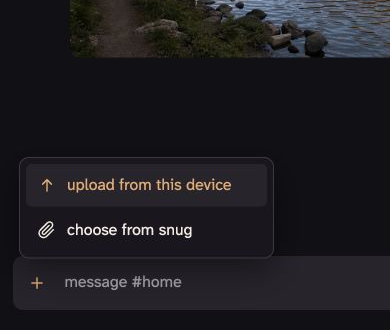
A file belongs to the channel it was shared in, so only people who can read that channel can open it. If the uploader or an admin removes one, messages that link to it keep its name and show it as removed.
See what you missed
Select the clock in the conversation header to open activity. On a phone, choose activity from the channel menu. It shows who joined, who left, and what changed since you last looked, on any of your devices. The first time, it starts from when this device connected. Choose the current channel to see only its voice comings and goings. Moderation entries appear only when your own role could take the same action.
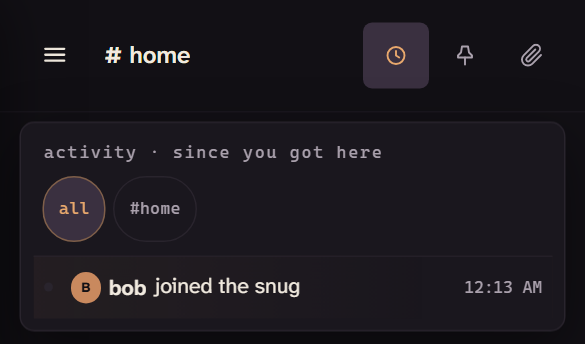
Admins can review older history under Settings > Admin > Activity. Filter it by what happened or by person, or jump to a date.
Find someone who's away
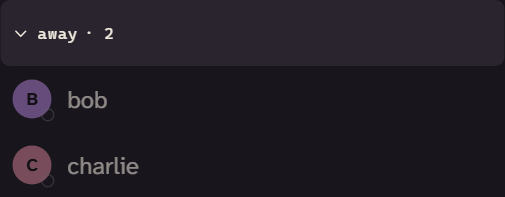
Open the faces near the bottom of the sidebar and type a name. People who are online appear first; open away to browse everyone else.
Block someone or report a problem
Open a person's menu from People, a message author, or a voice row and choose block person. This stops direct messages and pokes between you, hides their channel messages, files, cameras and screen shares for you, and mutes their voice and shared audio on your devices. They can still participate in shared channels. Blocking does not ban them from the snug server or change who can administer it.
To undo it, open the same person's menu in People and choose unblock person. The preference belongs to your identity on this snug server and follows your signed-in devices. Each device learns changes when it connects. On older servers, the menu explains that the admin needs to update before blocking is available.
Choose report to admins… in a person's menu or a message's actions. Explain what happened in the draft, then choose send to admins. Message reports include the author, channel, message ID, time, and a bounded copy of the words for you to review. The report stays on this snug server with your name attached. It is not sent to the people who make snug.
Admins read reports in Settings > Admin > Feedback. They should investigate, respond to the member, remove prohibited content, and use the existing kick or ban controls when needed. Remove the report from the inbox after handling it. For problems with snug itself, use the contact address in send feedback.
Set a text filter for your snug server
Admins can open Settings > Admin > Server > Text filter in the browser or phone app. Add one word, phrase, or link fragment per line, then choose save text filter. There can be up to 100 terms of 80 characters each. A term also matches inside a longer word; matching ignores case and repeated spaces. Choose specific terms to avoid rejecting ordinary conversation by mistake.
The server checks new and edited messages, poll choices, and plan descriptions before posting them, including messages from bots and webhooks. A refused message explains how to edit the words or ask an admin to review the filter. Changing the list applies to future posts immediately. It does not remove old content. An empty list means text is not being filtered. On older servers, the settings explain that the host needs to update first.
This is a text filter. It does not scan images, attachments, link previews, voice, or video, and cannot recognize every kind of abuse. Admins still need to read and respond to reports, remove prohibited content, and stop abusive members. Before inviting people, configure terms for the group and try a report from another account through Settings > Admin > Feedback. Check that an admin can investigate, respond, and remove the reported content. Keep checking that inbox while the snug server is in use.